

It was a rainy evening, and I was sitting in a small hotel room trying to send a file before a deadline. The laptop showed full signal bars. The video call was frozen anyway. I moved two steps closer to the door, and the call came back to life. Two steps back, and it died again. Nothing had changed except my position in the room, by less than a metre. That small, annoying moment is the best introduction I know to how Wi-Fi works, because Wi-Fi is not magic, and it is not a cloud floating above your house. It is radio, bouncing around a real room, through real walls, carrying real data in short bursts.
Most of us use Wi-Fi every day without ever seeing it work. We tap a network name, type a password, and a page appears. Behind that simple tap is a chain of events that would have sounded like science fiction a century ago: a router turns digital data into invisible radio waves, those waves travel through air and plaster, a tiny antenna in your phone catches them, and your phone turns them back into a photo, a message, or a film. Learning how Wi-Fi works means following that chain, step by step, from the cable in the wall to the screen in your hand.
1. What Wi-Fi Actually Is
1.1 A wireless local network, not the internet itself
Wi-Fi is a way for devices near each other to exchange data without cables, using radio waves. The name itself is a brand, created by the Wi-Fi Alliance, the industry group that tests devices and certifies that they can work together. The underlying technology is defined by a family of standards called IEEE 802.11, maintained by the Institute of Electrical and Electronics Engineers. When a box says Wi-Fi 6 or Wi-Fi 7, it is telling you which version of that standard it follows. The Wi-Fi Alliance explains the current generations and their certification on its Discover Wi-Fi pages.
Here is the distinction that clears up most confusion about how Wi-Fi works: Wi-Fi is not the internet. Wi-Fi is the wireless link between your device and your local network, usually your router. The internet is the vast network beyond the router, reached through a cable, a fibre line, or a mobile connection. If your Wi-Fi signal is strong but the internet connection behind it is down, your phone will show full bars and still load nothing. The bars measure the local radio link, not the health of the whole internet.
Think of it like a walkie-talkie system inside a house. The walkie-talkies let people in different rooms talk to each other, but they do not, by themselves, connect you to anyone outside the house. For that you need a telephone line as well. In a home network, Wi-Fi is the walkie-talkie part, and the broadband line is the telephone line. The router sits between them, translating in both directions.
1.2 The short history that made it ordinary
Wi-Fi did not arrive in one sudden invention. It grew out of decades of radio research, and one famous piece of the story belongs to Australia's national science agency, CSIRO. In the 1990s, a CSIRO team led by John O'Sullivan was working on a way to sharpen radio signals from black holes, and the mathematics they developed for dealing with reflected radio waves turned out to solve a practical problem: how to send data reliably indoors, where signals bounce off walls and arrive scrambled. That work fed into the patents and techniques behind modern wireless networking. I like that detail because it captures something real about science. A tool built to listen to the distant universe ended up helping a laptop in a kitchen connect to a router in a hallway.
The first widely used version, 802.11b, arrived in 1999 and could carry data at up to 11 megabits per second, which felt fast at the time and looks slow now. Each generation since has squeezed more data through the same invisible medium, using smarter ways of packing signals, wider channels, and more antennas. The names were confusing for years, a soup of letters like 802.11n and 802.11ac, until the Wi-Fi Alliance began numbering the generations plainly: Wi-Fi 4, Wi-Fi 5, Wi-Fi 6, Wi-Fi 6E, and Wi-Fi 7. That numbering is the one worth remembering, and Section 8 walks through it in order.
A useful way to hold the whole picture in mind is this: how Wi-Fi works is the story of turning a stream of ones and zeroes into radio waves, sending those waves across a room without them colliding too badly, and turning them back into ones and zeroes at the other end, millions of times a second, with error checking at every step.
2. How Wi-Fi Works on Radio Waves: The Invisible Road
2.1 Light you cannot see
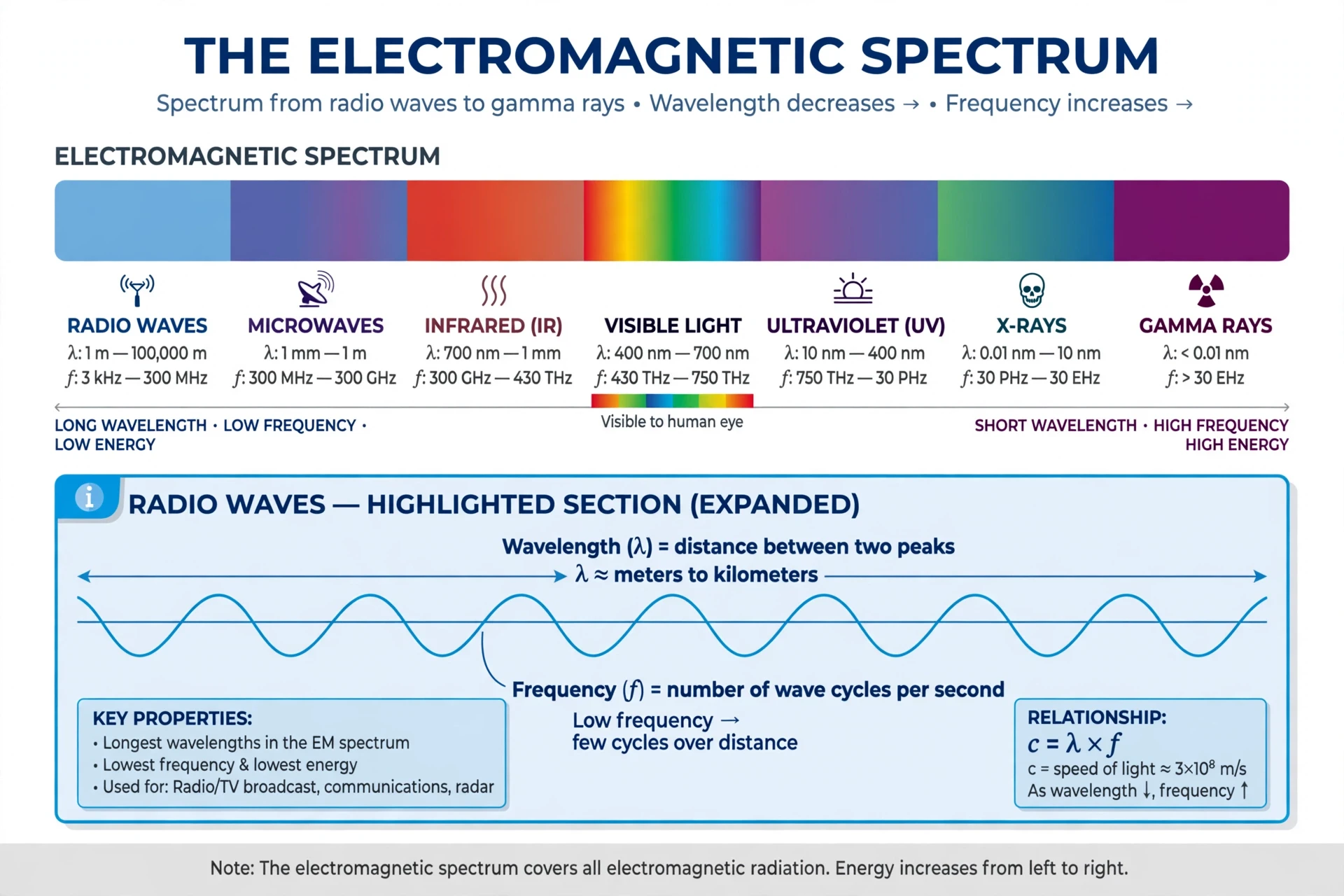
Radio waves are a form of electromagnetic radiation, the same family that includes visible light, X-rays, and the heat you feel from a stove. The difference between them is frequency, the number of waves that pass a point each second, and wavelength, the distance between one wave crest and the next. Visible light has a very high frequency and a very short wavelength. Radio waves sit at the other end of the scale: low frequency, long wavelength. NASA's introduction to the electromagnetic spectrum places radio waves at the low-frequency, long-wavelength end, below microwaves and infrared light, and it is a good place to start if you want the full picture: NASA: Anatomy of an Electromagnetic Wave.
Your eyes cannot see radio waves, but your phone's antenna can feel them. When a radio wave passes an antenna, it pushes electrons in the metal back and forth, creating a tiny alternating electric current. That current is the signal. The router does the reverse: it drives electrons back and forth in its antenna, and that movement launches a radio wave into the air. Every wireless device you own is, at heart, a very small radio station and a very small radio receiver, taking turns to transmit and listen.
I first felt how strange this is when I held a simple loop of wire near a radio transmitter in a teaching lab years ago and watched a meter twitch without any wire touching it. Nothing visible crossed the gap, yet energy and information did. That is the everyday miracle at the centre of how Wi-Fi works, and it stops feeling like magic once you see the pattern: a changing electric current makes a wave, and a wave makes a changing electric current.
2.2 Frequency, wavelength, and why the numbers matter
Frequency and wavelength sit at the centre of how Wi-Fi works, because every choice a router makes, which band to use, how wide a channel to open, how densely to pack data, starts with them.
Frequency is measured in hertz, where one hertz means one wave cycle per second. Wi-Fi uses frequencies around 2.4 gigahertz, 5 gigahertz, and 6 gigahertz. A gigahertz is a billion cycles per second, so a 2.4 gigahertz wave oscillates 2.4 billion times every second. Wavelength and frequency are linked by the speed of light: the higher the frequency, the shorter the wavelength. A 2.4 gigahertz wave is about 12.5 centimetres long, roughly the length of a smartphone. A 5 gigahertz wave is about 6 centimetres long. A 6 gigahertz wave is about 5 centimetres long.
Those lengths matter more than they first appear. An antenna works best when its size is related to the wavelength it handles, which is one reason phone antennas are small, folded, and carefully shaped rather than long rods. Wavelength also affects how a wave interacts with objects: a wave passes more easily around objects much smaller than its wavelength, and it is blocked or scattered more by objects close to its size. This is part of why different Wi-Fi bands behave differently around walls and furniture, a subject Section 10 covers in detail.
The other number that matters is bandwidth, which in this context means how wide a slice of the radio spectrum a Wi-Fi channel occupies. A wider channel can carry more data at once, like a wider road carrying more cars, but there is only so much spectrum to share, and wider channels leave less room for neighbours. Wi-Fi channels are typically 20, 40, 80, or 160 megahertz wide. The trade between width, range, and crowding shapes almost every practical decision about a home network.
For a reader who wants the physics underneath all of this, the link to light is worth holding on to. The same rules that explain why the sky looks blue, scattering of short wavelengths by tiny particles, also explain why radio waves and light behave differently when they meet matter. Our article on Why Is the Sky Blue walks through that scattering idea with visible light, and the same habit of thinking, wavelength meets object, size decides what happens, carries straight over to radio. The physics of electricity that makes antennas possible is covered in Fundamentals of Electricity, which explains the currents and fields behind every radio transmission.
2.3 Why radio, and why these frequencies
Engineers did not pick radio waves for Wi-Fi by accident. Radio waves at these frequencies pass through air easily, they do not need a line of sight the way a laser link would, and they can be generated and received with small, cheap electronics. Lower frequencies would travel further and pass through walls better, but they would carry less data and need larger antennas. Higher frequencies could carry enormous amounts of data, but they would be blocked by almost everything, including rain and your own hand.
The 2.4, 5, and 6 gigahertz bands are also unlicensed in most countries, which means anyone can use them without buying a licence from a regulator, as long as their equipment follows power limits and other rules. That open access is a large part of why Wi-Fi spread so fast: no single company owns the airwaves it uses. The cost is crowding. Your neighbours' routers, your microwave oven, baby monitors, and Bluetooth headphones all share parts of the same spectrum, and your router has to work around them.
Wi-Fi is not a separate kind of physics. It is ordinary radio, tuned, timed, and coded with extraordinary care, so that billions of devices can share the same invisible air without shouting each other down.
3. From Data to Radio Waves and Back Again
3.1 Bits become waves: modulation
Modulation is the first step in how Wi-Fi works in practice, the moment digital data stops being an abstraction and becomes a physical wave.
Everything your device sends, a text message, a video frame, a web page, is stored as bits, ones and zeroes. A radio wave, by itself, is a smooth, repeating oscillation. To carry bits, the transmitter has to change the wave in a pattern that means something: this is called modulation. The simplest picture is a wave whose height, timing, or starting point is shifted to represent different bit patterns. Real Wi-Fi uses a far more refined version called quadrature amplitude modulation, or QAM, which changes both the height and the timing of the wave at once, so that each small symbol the transmitter sends can stand for several bits instead of one.
Wi-Fi 6 uses 1024-QAM, which packs 10 bits into each symbol. Wi-Fi 7 uses 4096-QAM, packing 12 bits into each symbol. Packing more bits into each symbol raises the data rate, but it also makes the signal harder to read. The receiver has to tell apart symbols that are very close together, and any noise or interference makes that harder. So a router does not always use its highest modulation. When the signal is strong and clean, it uses dense packing. When the signal is weak, it drops to a simpler, sturdier modulation, sending fewer bits per symbol but making far fewer mistakes. This automatic adjustment, called adaptive modulation, is why your speed falls as you walk away from the router: the devices are not being lazy, they are choosing reliability over raw speed.
3.2 Splitting the channel: OFDM and OFDMA
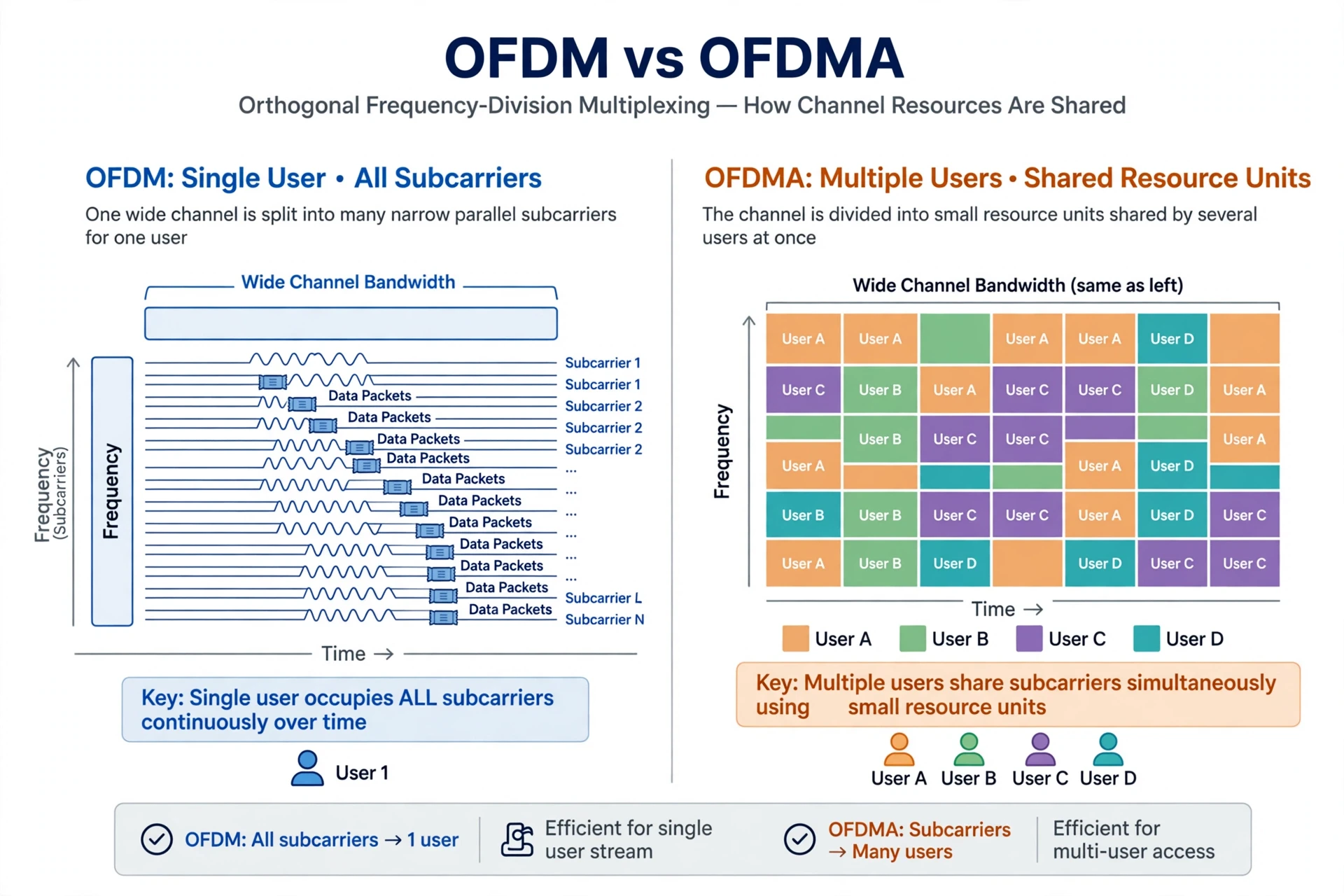
A single wide radio channel is a hostile place. Some frequencies within it fade because of reflections, while others stay strong. Sending one big signal across the whole channel would mean the faded parts corrupt the whole message. Wi-Fi solves this with orthogonal frequency-division multiplexing, OFDM, one of the cleverest parts of how Wi-Fi works. It splits a channel into many narrow subcarriers, each carrying a small piece of the data in parallel, like a choir singing in harmony instead of one singer shouting. If a few subcarriers fade, the rest still get through, and error correction fills the gaps.
Wi-Fi 6 added OFDMA, the multi-access version. Where OFDM gave the whole channel to one device at a time, OFDMA divides the channel into small resource units and hands different units to different devices at the same moment. A smartwatch sending a tiny status update no longer has to wait for a laptop's huge video download to finish its turn on the channel; both can use small slices side by side. This is one of the main reasons Wi-Fi 6 feels faster in a crowded home even when the top speed on the box has not doubled. The improvement is not only about peak speed. It is about sharing fairly when many devices are active at once, which is the normal state of a modern home.
3.3 Packets, frames, and error checking
Wi-Fi does not send a file as one long stream. It chops data into small pieces called packets, wraps each one in a frame with addresses and control information, and sends the frames one at a time. Each frame carries the address of the sender and the intended receiver, a sequence number, the data itself, and a checksum, a short value computed from the data that lets the receiver test whether the frame arrived intact.
If a frame arrives damaged, the receiver does not try to guess. It simply does not acknowledge it, and the sender tries again. This sounds wasteful, and in a sense it is, but it is also the reason your downloads arrive correct instead of merely fast. The system trades a little extra airtime for certainty, and the retry happens so fast that you rarely notice it, unless so many frames are failing that the retries themselves clog the channel.
I once watched a student try to download a large file over a weak, distant connection and blame the laptop for being slow. We moved the laptop three metres, the error rate fell sharply, and the download finished in minutes. The laptop had been fine. The radio link had been spending most of its time resending damaged frames, like a conversation in a noisy room where every sentence has to be repeated twice. Learning how Wi-Fi works means learning to see those invisible retries, because they explain so much of what feels like slowness.
3.4 The handshake: how a device joins a network
Before any of your data flows, your device and the router perform a short exchange. Your device scans the air, listening for beacon frames that routers broadcast several times a second, announcing their network name, supported speeds, and security type. When you pick a network, your device sends an association request, the router replies, and then, if the network is protected, the two sides run a security handshake that proves you know the password without sending the password itself in plain text. Only after that handshake do they agree on encryption keys for the session. Section 9 explains that security in detail.
Once connected, the router gives your device a local address, usually through a service called DHCP, and records which device is which. From then on, every frame your device sends carries its address, and the router knows where to send replies. When you walk out of range, the link fades, the retries pile up, and the device eventually drops the connection and starts scanning again. Nothing about this is permanent. A Wi-Fi connection is a live, negotiated relationship between two radios, renewed frame by frame.
4. The Three Bands: 2.4 GHz, 5 GHz, and 6 GHz
4.1 Why Wi-Fi has more than one band
A band is a range of frequencies set aside for a purpose. Wi-Fi uses three main bands, and understanding how Wi-Fi works in a real home means understanding the trade each band makes between range, speed, and crowding. There is no single best band. There is only the best band for a given distance, a given wall, and a given moment.
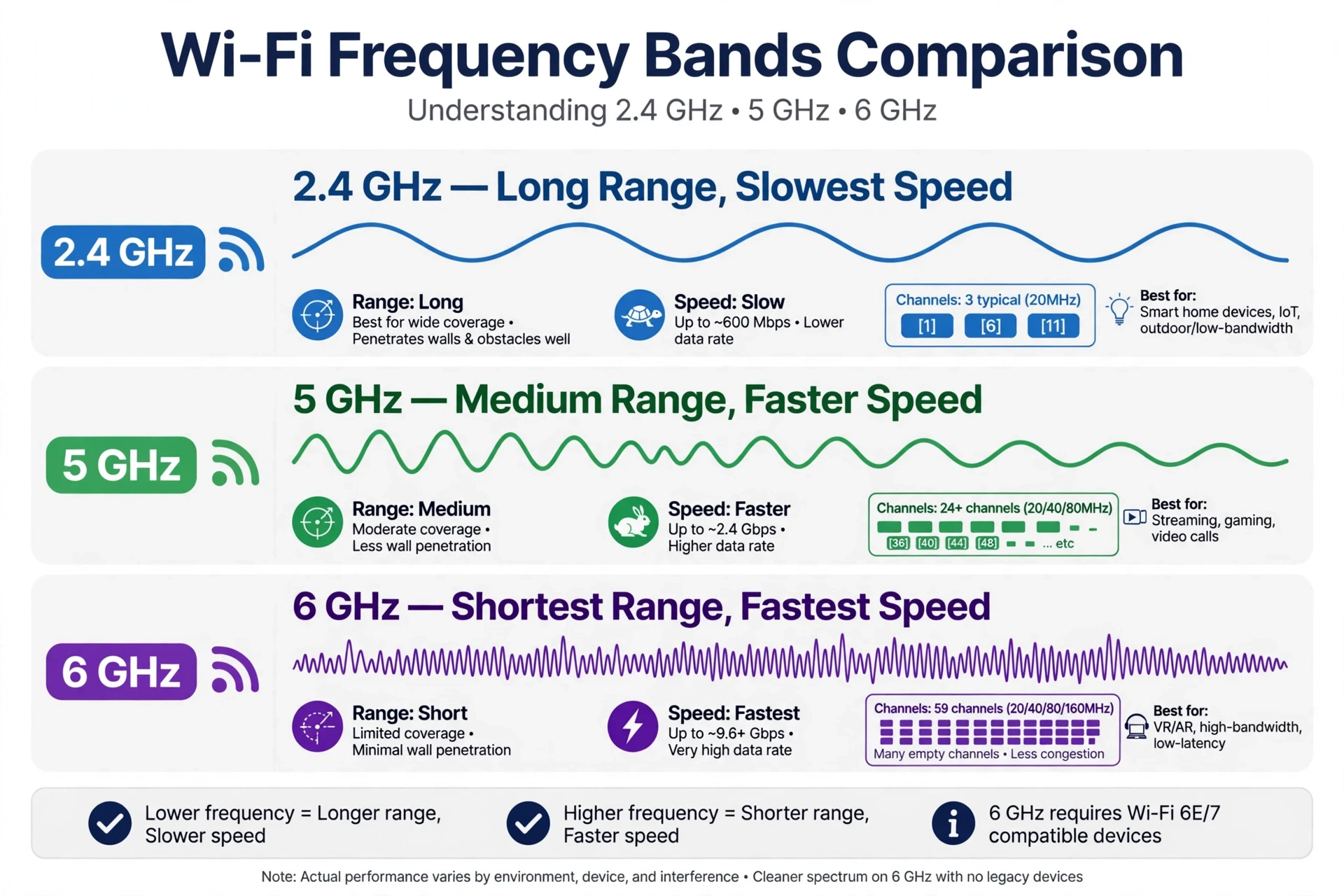
The 2.4 gigahertz band is the oldest and the most crowded. It travels furthest and passes through walls best, because its longer wavelength bends around small obstacles and loses less energy in common building materials. It is also narrow, with only a few non-overlapping channels, and it is shared with microwave ovens, Bluetooth devices, baby monitors, and many smart-home gadgets. Speeds are lower, and interference is common. A device far from the router, or two rooms away behind a wall, will often do best on 2.4 gigahertz, simply because the signal still arrives.
The 5 gigahertz band is faster and far less crowded. It offers many more channels, including wide 80 and 160 megahertz channels, so it can carry much more data. Its shorter wavelength means it is absorbed more by walls and furniture, so its useful range is shorter. In the same room as the router, 5 gigahertz is usually the right choice for video calls, streaming, and large downloads. One room away, it may still win. Two rooms away, it may lose to 2.4 gigahertz.
The 6 gigahertz band arrived with Wi-Fi 6E and is the newest of the three. It is wide open, with room for many wide channels and almost no older devices competing for space, because only Wi-Fi 6E and Wi-Fi 7 devices can use it. It offers the highest speeds and the lowest congestion, but its range is the shortest of the three, and it is stopped most easily by walls. Think of it as a fast lane that only works close to the router.
4.2 Channels inside the bands
Inside each band, the spectrum is divided into channels, and a router picks one channel to operate on. On 2.4 gigahertz there are only three channels that do not overlap each other, channels 1, 6, and 11 in most regions, which is why neighbours on the same channel interfere with each other so directly. On 5 and 6 gigahertz there are many more channels, so a router has room to move away from a busy one. Modern routers do this automatically, scanning for a quieter channel and switching when the current one gets crowded. That automatic choice is one reason a router sometimes seems to fix itself after a few minutes: it has moved to a clearer channel while you were not looking.
Channel width adds another choice. A 20 megahertz channel is narrow, sturdy, and polite to neighbours. A 40, 80, or 160 megahertz channel is wide and fast, but it uses up more spectrum and is more likely to overlap with a neighbour's channel. In a crowded apartment building, a wide channel can backfire, because the interference it picks up forces retransmissions that wipe out the speed gain. In a detached house with few neighbours, the same wide channel can be a clear win. Good routers balance this automatically, but the trade never disappears. It is built into the physics of sharing a limited resource.
Band | Typical range | Typical speed | Crowding | Best for |
|---|---|---|---|---|
2.4 GHz | Longest | Lowest | High | Far rooms, smart-home devices, basic browsing |
5 GHz | Medium | High | Medium | Video calls, streaming, and downloads in the same or next room |
6 GHz | Shortest | Highest | Low | Fast, close-range use on Wi-Fi 6E and Wi-Fi 7 devices |
4.3 One network name, three bands
Most modern routers broadcast a single network name and let devices choose which band to use, a feature often called band steering or smart connect. Your phone may start on 5 gigahertz near the router and quietly move to 2.4 gigahertz as you walk to the far bedroom. Sometimes this works smoothly. Sometimes a device clings to a fading 5 gigahertz signal when 2.4 gigahertz would serve it better, and the connection stutters. That stubbornness is not a flaw in how Wi-Fi works in principle. It is a judgement call each device makes with incomplete information, and different devices make it differently. If your connection behaves badly in one spot, splitting the bands into separate network names, so you can choose by hand, is a practical test worth trying, and Section 12 returns to it.
5. How Devices Share the Air Without Shouting Over Each Other
5.1 Taking turns: CSMA/CA
Sharing the air politely is a central part of how Wi-Fi works, and the rules for it are simpler than the name suggests.
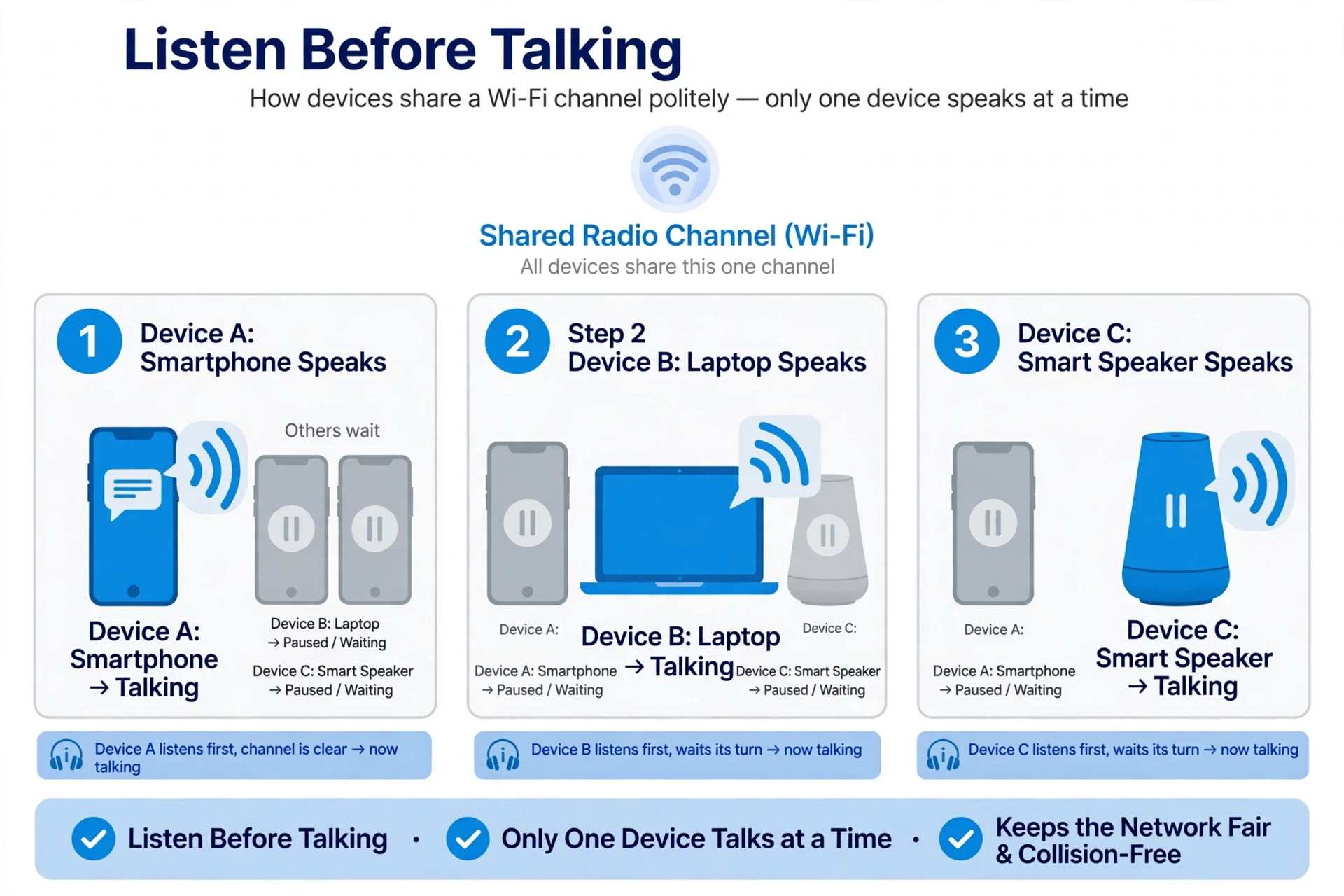
Wi-Fi is a shared medium. Every device on a network uses the same air, and if two devices transmit at the same moment on the same channel, their signals collide and both frames are lost. Wired Ethernet solved this long ago by letting a device detect a collision while it happens. Wi-Fi cannot do that easily, because a transmitting device cannot hear the channel well while its own transmitter is running, so it uses a different approach: carrier sense multiple access with collision avoidance, CSMA/CA. The name sounds forbidding. The idea is polite and simple. Listen before you speak, and if someone is speaking, wait.
Before transmitting, a device listens to the channel. If the channel is quiet, it waits a short random delay and then transmits. If the channel is busy, it waits until it goes quiet, then waits a further random delay before trying. The random part matters: if two waiting devices both tried the moment the channel went quiet, they would collide again, so each picks a different random wait, and the one with the shortest wait speaks first. The other hears it and waits again. This polite waiting is the reason Wi-Fi slows down when many devices are active. The airtime is being spent on waiting and on retransmissions, not only on data.
5.2 Hidden nodes and the limits of politeness
Politeness has a blind spot called the hidden node problem. Imagine two laptops on opposite sides of a house. Both can hear the router in the middle, but they cannot hear each other, because the distance and walls between them are too great. Each listens, hears silence, and transmits. Both frames arrive at the router at the same time and collide. Neither laptop knew the other was speaking. Routers can reduce this with a request-to-send and clear-to-send exchange, RTS/CTS, in which a device asks the router for permission before sending a long frame, and the router's reply tells every device in range to stay quiet for a moment. It costs extra airtime, so it is used sparingly, usually only for larger frames or in networks where hidden nodes are a known problem.
I learned how real this blind spot is during a workshop in a long, thin building, where laptops at opposite ends kept dropping each other's traffic even though each one showed a strong signal. Each device was telling the truth about what it could hear. The trouble was what neither of them could hear, and the fix was not a stronger router but a second access point in the middle, so that no two devices were hidden from each other. That is a pattern worth remembering: when a wireless problem looks like weak signal, it may actually be a problem of who can hear whom.
5.3 Acknowledgements and the rhythm of a conversation
Every unicast frame in Wi-Fi, a frame meant for one specific device, is followed by a short acknowledgement, an ACK, from the receiver. The sender waits for that ACK. If it does not arrive in time, the sender assumes the frame was lost and tries again, after a random backoff delay that grows with each failure. This exchange gives Wi-Fi its characteristic rhythm: send, pause, acknowledge, send again. It also means that roughly speaking, a Wi-Fi link spends a visible share of its time on control traffic, not on your data. The headline speed on a router box is the raw radio rate. The speed you actually experience is lower, because acknowledgements, waiting, headers, and retries all take their share. That gap is normal, and it is built into how Wi-Fi works, not a sign that something is broken.
6. MIMO, Beamforming, and Sending More at Once
6.1 Many antennas, many streams
Multiple antennas are one of the main reasons modern Wi-Fi feels so much faster, and they are a good example of how Wi-Fi works by exploiting the room itself.
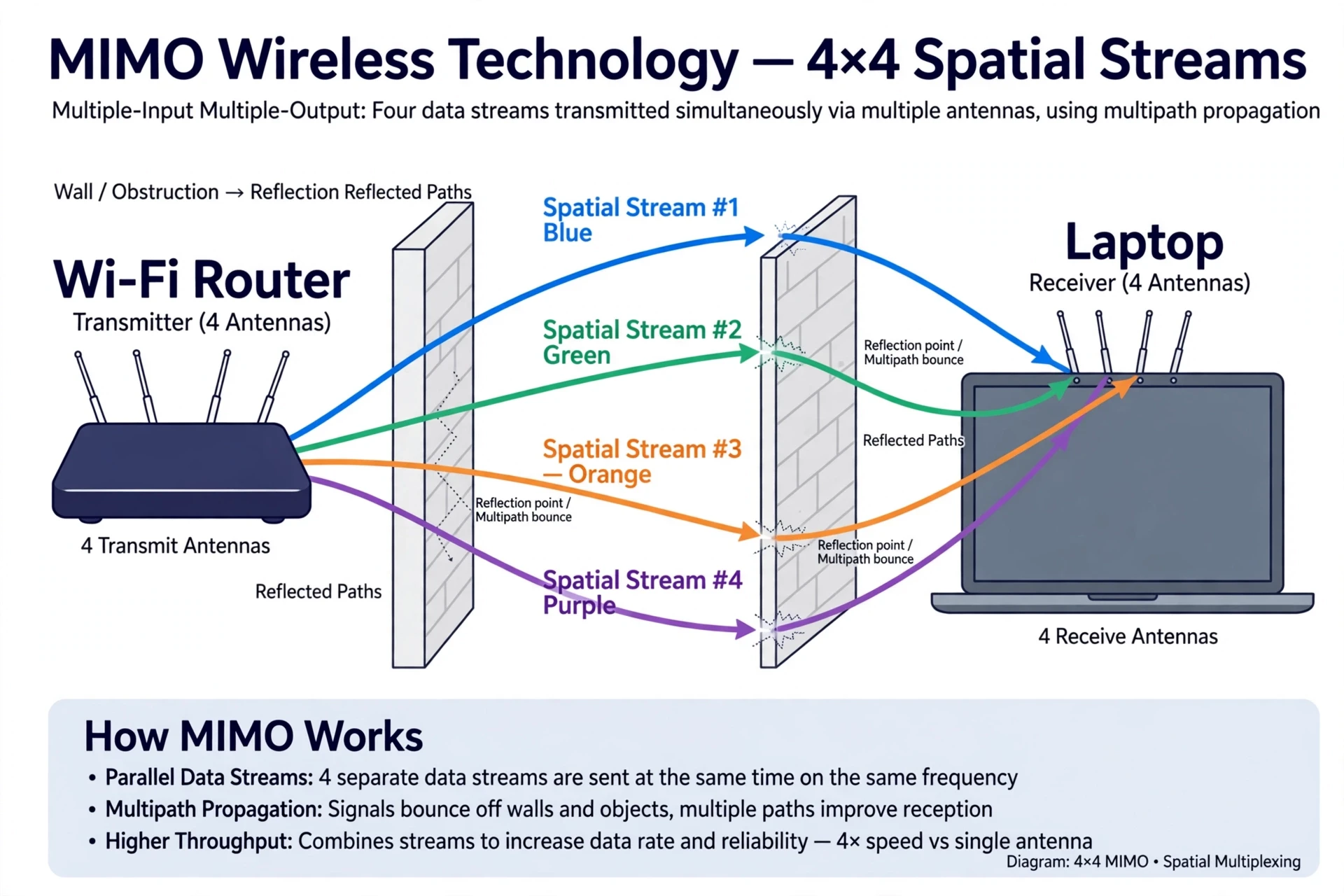
Early Wi-Fi used one antenna at each end and one stream of data. Modern Wi-Fi uses multiple antennas at both ends, a technique called multiple-input multiple-output, MIMO. Each antenna can send or receive a separate stream of data at the same time, on the same channel, and the receiver separates the streams by working out how each one travelled through the room. This sounds impossible until you remember that every stream takes a slightly different path, bouncing off different walls and furniture, so each arrives with its own fingerprint of delays and phase shifts. The receiver uses those fingerprints to untangle the streams, much as you can follow two voices in a room if one comes from the left and the other from the right.
A router advertised as 4x4 MIMO has four antennas for transmitting and four for receiving, and it can send up to four spatial streams at once to a device that can handle them. A phone with two antennas can use two streams. The number of streams is limited by the device with fewer antennas, so a four-antenna router talking to a two-antenna phone uses two streams. The gain is real: two streams roughly double the data rate compared with one, under good conditions, and three or four streams raise it further. This is one of the main reasons a modern router is so much faster than a router from fifteen years ago, even on the same band.
6.2 Beamforming: aiming the signal
In the early days, a router broadcast its signal equally in all directions, like a light bulb. Beamforming changed that. A router with several antennas can adjust the timing of the signal from each antenna so that the waves add up strongly in the direction of a particular device and cancel out elsewhere, like a torch instead of a light bulb. The router learns where each device is by exchanging sounding frames with it, small test transmissions that reveal how the signal travels between them. It then steers a beam toward that device, improving the signal strength and reducing interference for everyone else.
The improvement is not magic, and it is not a laser. The beam is broad, it shifts as you move, and it cannot pass through a wall that would have blocked the signal anyway. What it does is focus the energy that would otherwise have been spread in all directions, including directions where no device is listening. I once tested this by walking around a room with a signal-measuring app while a beamforming router tracked my phone, and the signal stayed steadier as I moved than it had with the older router it replaced. The difference was not dramatic in any one spot. It was the absence of sudden dead spots that gave it away.
6.3 MU-MIMO and serving several devices at once
Single-user MIMO sends several streams to one device. Multi-user MIMO, MU-MIMO, sends streams to several devices at the same time. A 4x4 router can, for example, send two streams to a laptop and two to a television simultaneously, instead of serving them one after the other. Combined with OFDMA from Section 3, this is how modern Wi-Fi copes with a house full of devices: it divides the work in space as well as in frequency and time.
There is a catch worth stating plainly. MU-MIMO only helps when the devices and the router both support it, and when the devices are in different directions with distinct signal paths. If two devices are side by side, their paths look too similar for the router to separate them cleanly, and the router falls back to serving them one at a time. Marketing often presents these features as if they always work at full strength. In practice they work best in exactly the situation they were designed for, several devices spread around a room, each with a clear path to the router, and less well when every device is crowded together on one sofa.
The fastest Wi-Fi is not the one with the biggest number on the box. It is the one whose antennas, channels, and sharing rules fit the actual room, the actual walls, and the actual number of devices using it.
7. Routers, Modems, and Access Points: Three Jobs, Often in One Box
7.1 The modem: translating between worlds
To see how Wi-Fi works in a whole home, it helps to separate the three jobs that are often squeezed into one box.
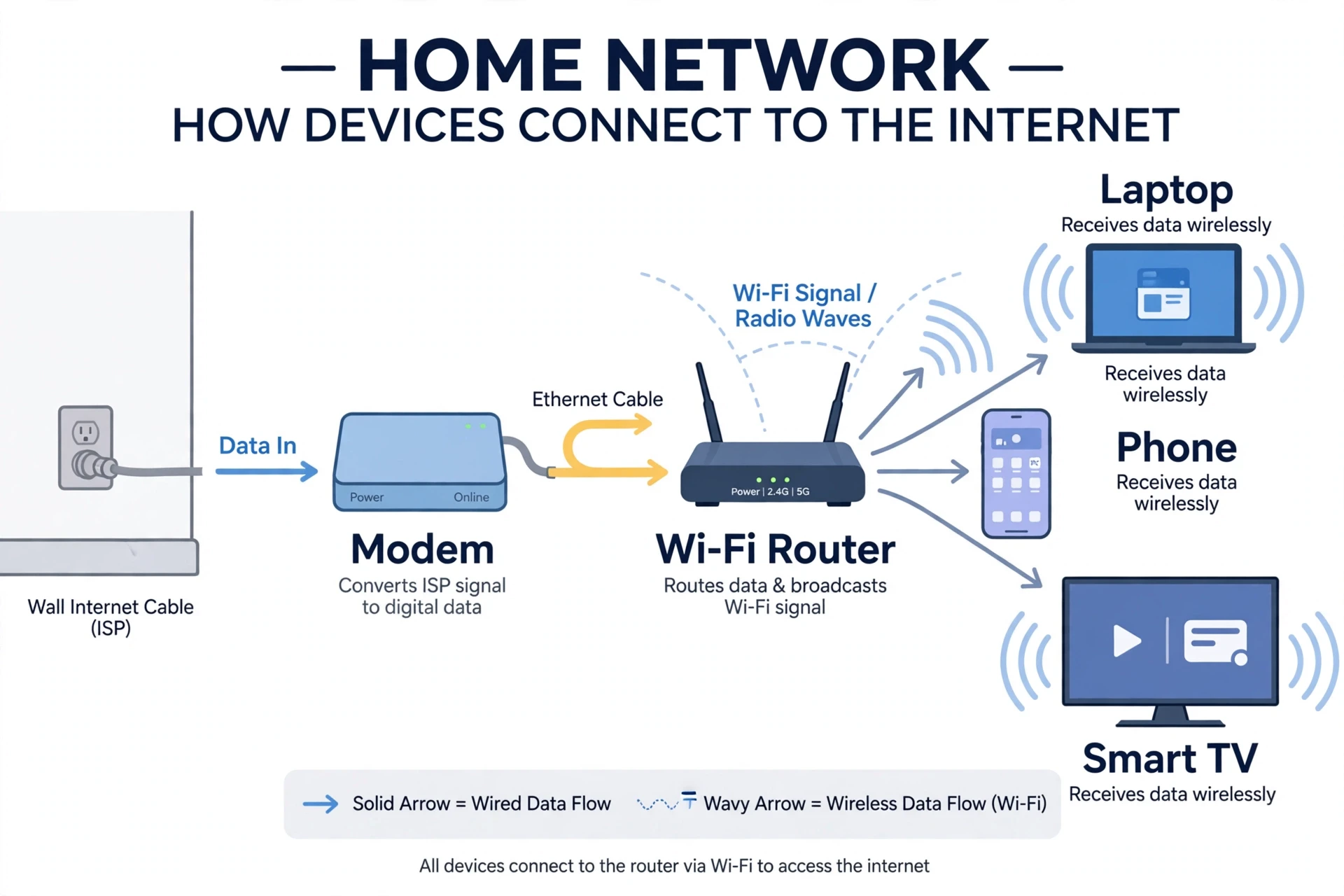
The modem's job is to translate between the internet connection coming into your home and the digital network inside it. A cable modem translates the signal on a coaxial cable. A fibre modem, often called an ONT, translates pulses of light on a fibre line. A DSL modem translates the signal on a telephone line. The modem speaks the language of your internet provider on one side and plain digital data on the other. It does not, by itself, create Wi-Fi, and it does not decide which device gets which data inside your home. That is the router's job.
7.2 The router: directing traffic
The router is the traffic director of your home network. It takes data from the modem, looks at the destination address on each packet, and forwards it to the right device, whether that device is connected by Wi-Fi or by an Ethernet cable. It also does the reverse, taking packets from your devices and sending them out to the internet. It keeps a table of which device has which local address, it runs the DHCP service that hands out those addresses, and it usually runs a firewall that blocks unsolicited traffic from outside.
Most home routers also contain a wireless access point and a small switch for wired connections, which is why one box can do everything. That convenience hides the separate jobs inside it, and the distinction matters when something goes wrong. If the Wi-Fi is down but a wired computer still reaches the internet, the modem and the router are fine, and the fault is in the wireless part. If nothing reaches the internet, wired or wireless, the fault is more likely in the modem or the line coming in. Knowing which box does what turns a vague "the internet is broken" into a short list of things to test.
7.3 Access points and mesh systems
An access point is a device whose only job is to provide Wi-Fi. It connects to the router by cable and broadcasts a wireless network in its part of the building. A large house, an office, or a school may have several access points, all wired back to one router, so that devices always have a nearby radio to talk to. Your device moves between access points as you walk, handing over from one to the next, ideally without dropping the connection.
A mesh system is a set of access points that talk to each other wirelessly as well as to your devices. You place one node near the modem, and the others around the house, and they form a network among themselves, passing data from node to node until it reaches the modem. Mesh is convenient because it needs no extra cables, but each wireless hop between nodes uses airtime and can halve the speed at the far node, so a wired backhaul, a cable between the nodes, is always better when it is practical. This is another case where the simple picture, more boxes means more speed, needs the fuller picture: more radios help only if they have a fast path back to the internet.
8. Wi-Fi 4, 5, 6, 6E, and 7: What Each Generation Changed
8.1 A short history of the generations
Each generation changed how Wi-Fi works in detail while keeping the same foundation, so the history reads as a series of improvements rather than a series of reinventions.
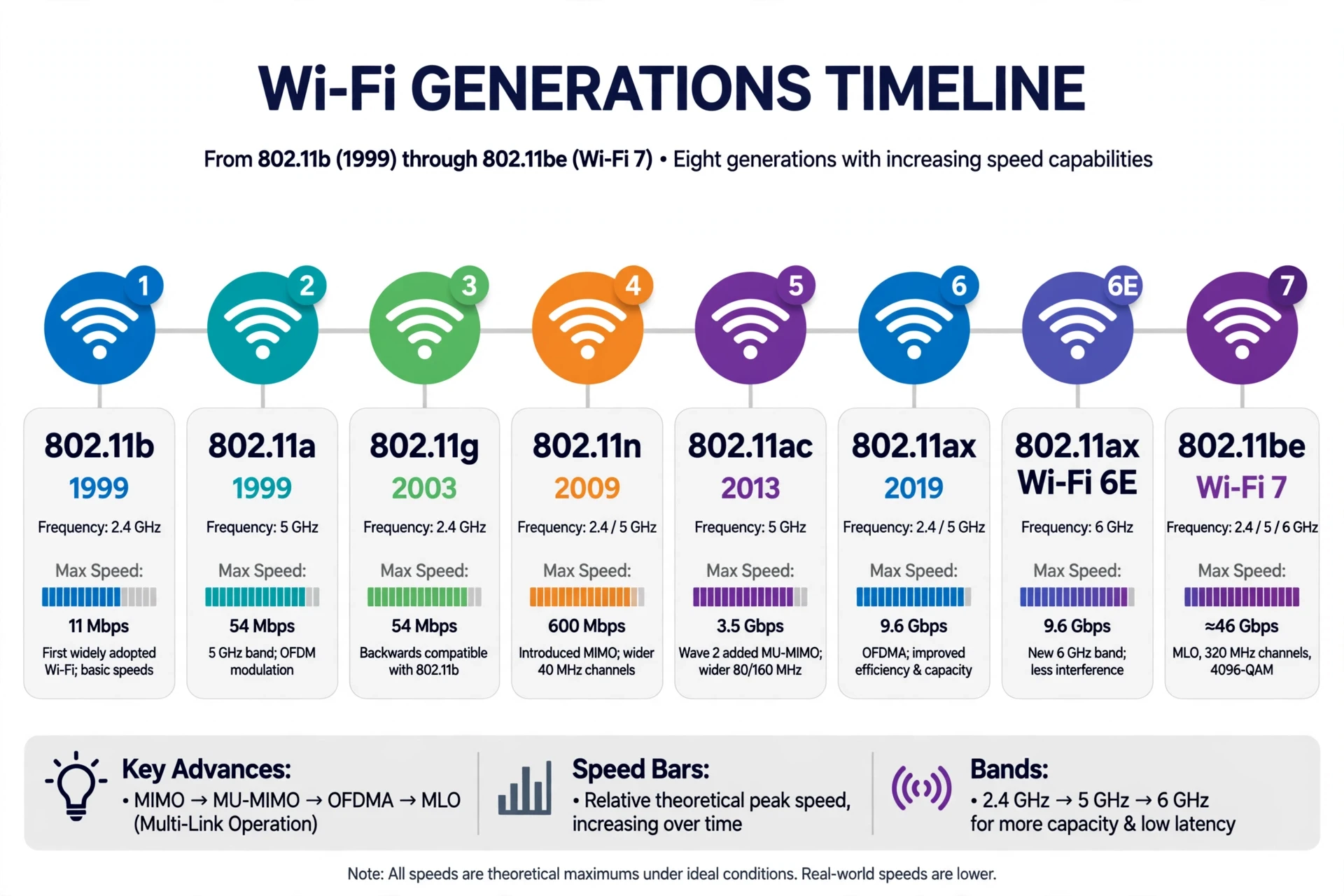
The numbering that the Wi-Fi Alliance introduced in 2018 maps onto the older 802.11 names like this: Wi-Fi 4 is 802.11n, Wi-Fi 5 is 802.11ac, Wi-Fi 6 is 802.11ax, Wi-Fi 6E is Wi-Fi 6 extended into the 6 gigahertz band, and Wi-Fi 7 is 802.11be. Each generation kept the same basic idea, radio waves carrying packets between devices that take turns, and improved the details: wider channels, denser modulation, more streams, and smarter sharing. Understanding how Wi-Fi works across generations means seeing that pattern, same foundation, better engineering on top, rather than a new invention each time.
Wi-Fi 4, from 2009, brought MIMO into the mainstream and allowed channels on both 2.4 and 5 gigahertz. It raised the top speed to 600 megabits per second with four streams, and for many homes it was the first version that felt fast enough for video. Wi-Fi 5, from 2013, moved to the 5 gigahertz band only, widened channels to 80 and 160 megahertz, and introduced MU-MIMO for downloads, pushing the top speed toward several gigabits per second under ideal conditions. Wi-Fi 6, from 2019, returned to both bands, added OFDMA, improved MU-MIMO in both directions, and introduced a feature called target wake time that lets devices sleep longer between check-ins, saving battery on phones and sensors. Wi-Fi 6E, from 2020, added the 6 gigahertz band, with its wide-open channels. Wi-Fi 7, certified from 2024, adds 320 megahertz channels, 4096-QAM, multi-link operation, and stronger MU-MIMO.
Generation | Standard | Bands | Key improvement | Top speed, ideal conditions |
|---|---|---|---|---|
Wi-Fi 4 | 802.11n | 2.4 and 5 GHz | MIMO becomes mainstream | 600 Mbps |
Wi-Fi 5 | 802.11ac | 5 GHz | Wide channels, MU-MIMO downloads | About 3.5 Gbps |
Wi-Fi 6 | 802.11ax | 2.4 and 5 GHz | OFDMA, better sharing, battery saving | About 9.6 Gbps |
Wi-Fi 6E | 802.11ax | 2.4, 5, and 6 GHz | New 6 GHz band, wide clear channels | About 9.6 Gbps |
Wi-Fi 7 | 802.11be | 2.4, 5, and 6 GHz | 320 MHz channels, multi-link operation | About 46 Gbps |
8.2 Wi-Fi 7 and multi-link operation
Wi-Fi 7's most interesting feature is not its headline speed, which almost no home internet connection can use yet, but multi-link operation, MLO. Earlier Wi-Fi made a device pick one band and one channel and stay there. MLO lets a device connect to the router on two bands at the same time, for example 5 and 6 gigahertz, and use whichever link is clearer at any given moment, or both at once. If one band is hit by interference, the other carries the traffic. If both are clear, they can share the load. The result is not only higher peak speed but lower and steadier latency, the delay between sending a request and getting a reply, which matters for video calls, cloud gaming, and virtual reality. The Wi-Fi Alliance's pages on Wi-Fi CERTIFIED 7 describe these features and the certification behind them, and its Wi-Fi CERTIFIED 6 pages do the same for the previous generation.
8.3 Do you need the newest version
A new generation helps only when the rest of the chain can use it. A Wi-Fi 7 router talking to a Wi-Fi 5 phone will use Wi-Fi 5 features, because the connection is limited by the weaker side. A Wi-Fi 7 laptop will still be limited by a slow broadband line. The people who gain most from Wi-Fi 7 today are those with many devices, a fast broadband line, and a home where several people stream, game, and video-call at once. For a smaller household with a modest broadband line, a good Wi-Fi 6 router, well placed, will often feel identical. The honest test is not the number on the box. It is whether the slowest thing you actually do gets faster.
9. Security: How Wi-Fi Keeps Strangers Out
9.1 From open networks to WPA3
Security is a part of how Wi-Fi works that most users never see, because it happens in a handshake that takes a fraction of a second.
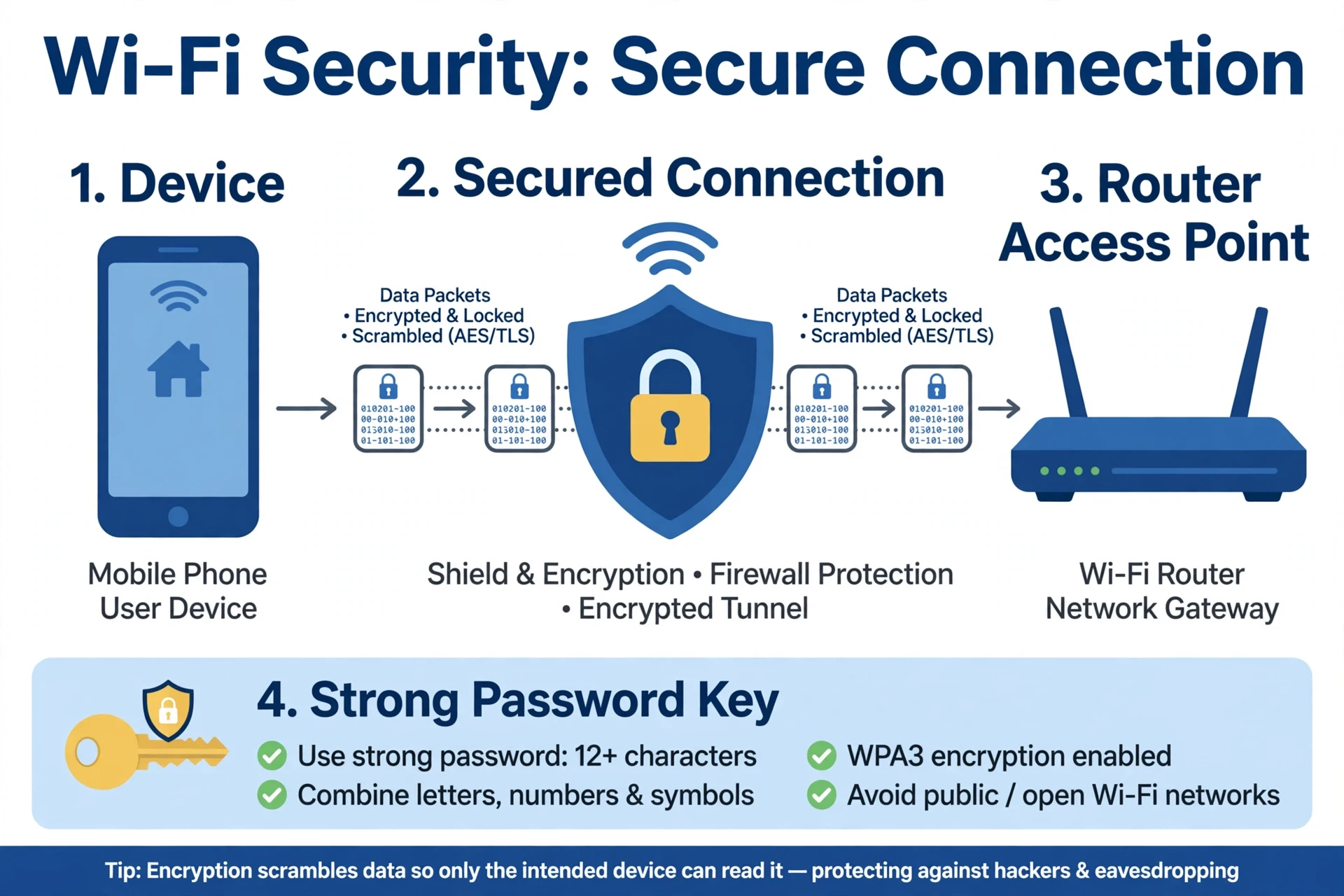
The first Wi-Fi security, WEP, is now broken beyond repair and should never be used. It used a short key and a flawed design that lets an attacker recover the key by listening to enough traffic. WPA replaced it, and WPA2, introduced in 2004, became the standard for many years, using a strong encryption method called AES. WPA3, introduced in 2018, is the current standard, and it fixes the most important weakness of WPA2: the way the password handshake worked. The Wi-Fi Alliance's security pages explain the current guidance, including WPA3 and its protections.
Under WPA2, an attacker who captured the handshake between a device and a router could take it home and try password after password offline, at high speed, until one worked. A short or common password could fall quickly. WPA3 replaces that handshake with a method called Simultaneous Authentication of Equals, SAE, which makes offline guessing far harder, and gives each device its own encryption keys even when several devices share the same password. It also protects open networks with a feature called Opportunistic Wireless Encryption, which encrypts traffic on networks that have no password at all, such as a cafe hotspot, so that a listener cannot simply read everything passing through the air.
9.2 What encryption does and does not do
Encryption scrambles the data travelling through the air so that only the intended receiver can read it. It does not make you invisible, and it does not protect data after it leaves the router. The router decrypts your Wi-Fi traffic and sends it onward over the internet, where it is protected, or not, by the security of each website and service you use. That is why a secure website address beginning with https matters even on your own home network, and why a public Wi-Fi network with WPA3 is safer than an open one, but still not a place to assume privacy.
A strong Wi-Fi password matters more than most people think. It should be long, unique to your network, and not a word or pattern anyone could guess. A long passphrase made of several unrelated words is easier to remember and harder to guess than a short jumble of characters. Changing the router's admin password matters too. Many routers ship with a default admin password printed on a label, and anyone who can reach your network and guess that password can change its settings. Updating the router's firmware, the software inside it, closes security holes that researchers and manufacturers discover over time, and it is worth doing whenever an update appears.
9.3 A quick security checklist
Keep the list short enough to actually do. Use WPA3 if your router and devices support it, and WPA2 with AES as the fallback, never WEP or an open network at home. Use a long, unique Wi-Fi password. Change the router admin password from its default. Keep the router firmware updated. Turn off remote administration unless you have a specific reason to use it. Turn off WPS, the push-button pairing feature, if you do not use it, because some implementations have known weaknesses. None of these steps is difficult on its own. Together they close the easy paths an attacker would try first.
A locked network is not a guarantee, it is a raised cost. Good Wi-Fi security makes attacking your network slow, noisy, and unrewarding, so that an attacker moves on to an easier target.
10. Why the Signal Drops: Walls, Distance, and Interference
10.1 What happens when a wave meets a wall
Walls are where the theory of how Wi-Fi works meets the reality of a house, and the meeting is not always friendly.
A radio wave that meets a wall does three things at once: some of it passes through, some of it is reflected, and some of it is absorbed and turned into a tiny amount of heat. The proportions depend on the material and the frequency. Drywall and wood absorb relatively little, so a signal passes through them with only a modest loss. Brick and concrete absorb more. Metal reflects almost everything, which is why a metal filing cabinet, a fridge, or a mirror with a metal backing can cast a radio shadow behind it. Water absorbs radio waves strongly at Wi-Fi frequencies, which is why a large aquarium, a water tank, or even a crowd of people can weaken a signal. Human bodies are mostly water, so a room full of people is a room full of small absorbers.
Higher frequencies suffer more. A 5 gigahertz wave loses more energy passing through a wall than a 2.4 gigahertz wave does, and a 6 gigahertz wave loses more still. This is the physics behind the band trade in Section 4: the same wall that barely slows a 2.4 gigahertz signal can cut a 6 gigahertz signal sharply. The wave also spreads as it travels, so its power falls with distance even in open air, roughly with the square of the distance. Double the distance, and the received power falls to about a quarter. There is no way around this spreading. It is geometry, and every wireless system lives with it.
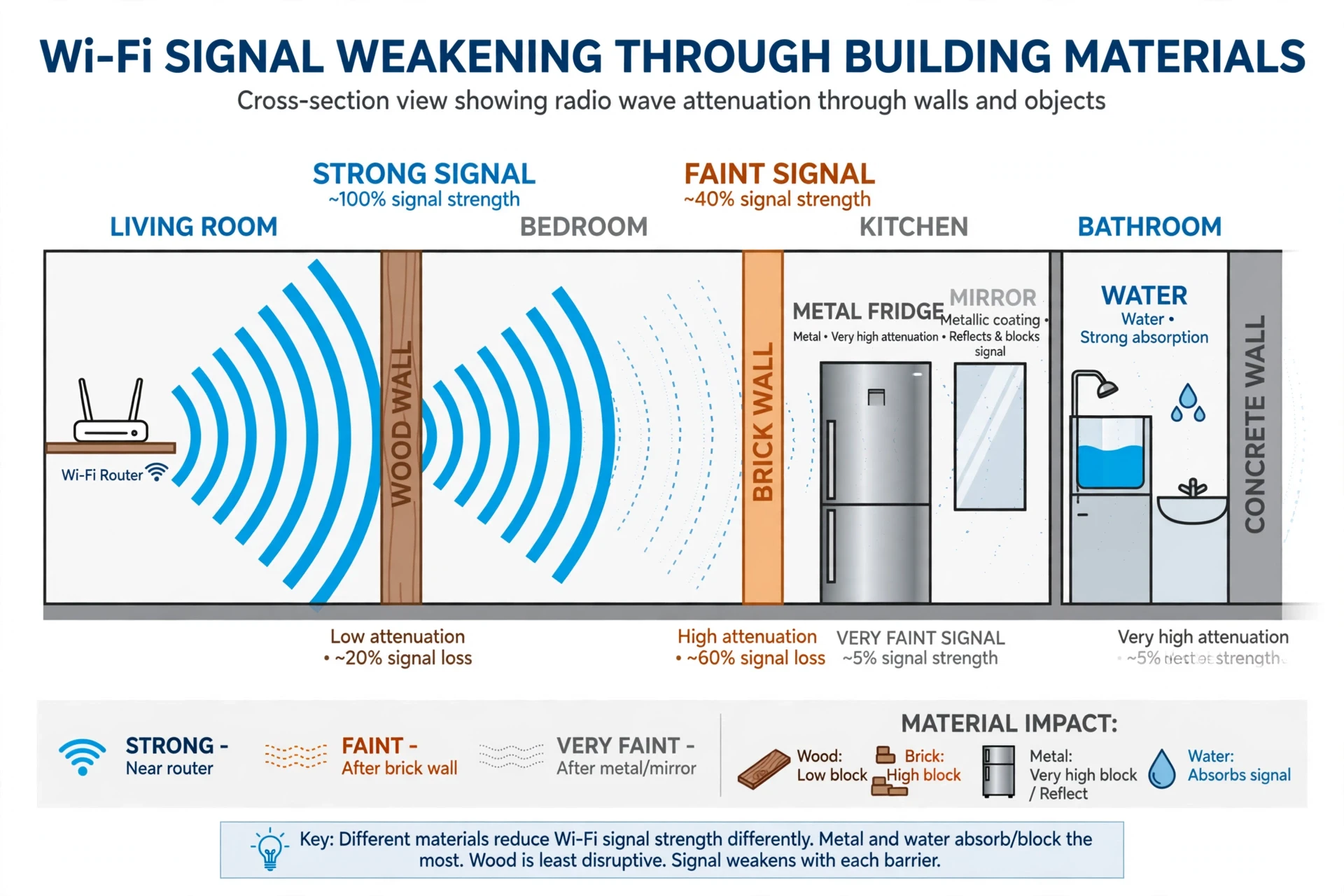
Material | Effect on Wi-Fi | Why |
|---|---|---|
Drywall, wood | Low loss | Thin, low-density, little water or metal |
Brick, concrete | Medium to high loss | Dense, absorbs more, especially at 5 and 6 GHz |
Metal, mirrors | Very high loss, reflection | Metal reflects radio waves almost completely |
Water, aquariums, people | High loss | Water absorbs Wi-Fi frequencies strongly |
Glass | Low to medium loss | Plain glass passes well; coated or tinted glass blocks more |
10.2 Reflections: friend and enemy
Reflections are not always bad. Indoors, a signal rarely reaches your device by one direct path. It arrives by many paths at once, bouncing off walls, ceilings, floors, and furniture, each copy arriving a fraction of a microsecond later than the last. MIMO, from Section 6, exploits exactly this richness of paths to send several streams at once. But reflections can also interfere destructively, when two copies of the same wave arrive out of step and cancel each other, creating a dead spot a few centimetres wide. Move your laptop a hand's width, and the dead spot moves with the geometry, which is why a connection can fail in one exact spot and work fine a step away. I saw this in the hotel room from the introduction: the dead spot was not a fault in the router. It was the room itself, adding and cancelling waves at that one place.
This is also why signal bars can be misleading. Bars measure the strength of the signal that arrives, not how clean it is. A strong signal full of interference and reflections can carry less data than a weaker, cleaner one. Speed tests, and how often a video stalls, tell you more about the quality of a link than the number of bars ever will.
10.3 Interference from neighbours and appliances
Your router is not the only radio in the building. Neighbouring routers on the same or overlapping channels add noise that your devices must work around, and the politeness rules of CSMA/CA mean your devices spend more time waiting when the air is busy. A microwave oven is a famous interferer, because it works at about 2.45 gigahertz, right in the middle of the 2.4 gigahertz Wi-Fi band, and a running microwave can leak enough energy to drown a nearby Wi-Fi signal. Bluetooth, baby monitors, wireless cameras, and cordless phones all share parts of the same spectrum. Even your own devices interfere with each other when many of them are active at once.
The practical consequence is that Wi-Fi performance changes through the day. Evenings, when every household in a building is streaming, are the hardest time for the shared spectrum. A channel that was clear at noon can be crowded at eight in the evening. A good router responds by moving channels, and a good household responds by using 5 or 6 gigahertz where possible, where there is more room, and by wiring the devices that never move, like a television or a games console, so they stop competing for airtime at all.
11. Speed, Bandwidth, and What Actually Limits You
11.1 The chain is only as fast as its slowest link
When people ask how Wi-Fi works and why it feels slow, the answer is usually a chain, and the slowest link in the chain decides the result. The chain runs from the internet provider's line into the modem, through the router, across the radio link to your device, and then through your device's own processor and software. A gigabit broadband line will not help if the radio link can only carry 100 megabits per second. A fast radio link will not help if the broadband line only delivers 50 megabits per second. A fast line and a fast link will not help if the server at the other end is slow, or if your device is old and its Wi-Fi chip only supports an early generation.
That is why two households with the same router can have very different experiences, and why a speed test taken next to the router can look excellent while a test in the far bedroom looks poor. The number on the router box is a laboratory maximum, measured with ideal conditions, several streams, a wide channel, and no interference. Real homes have walls, neighbours, and distance. A realistic expectation is a large fraction of that number close to the router, falling steadily with distance and obstacles, and shared among every active device.
11.2 Latency: the delay you feel before speed
Speed, measured in megabits per second, is how much data arrives per second. Latency, measured in milliseconds, is how long a single small message takes to go there and back. For streaming a film, speed matters most, because a large amount of data must arrive steadily. For a video call or a game, latency matters more, because a delay of a few hundred milliseconds makes a conversation feel like talking over a satellite link. Wi-Fi adds latency in several ways: waiting for a clear channel, retransmitting lost frames, and queueing behind other devices. A busy network can have good download speed and poor latency at the same time, which is why a call can stutter while a download runs fine.
Wi-Fi 6 and Wi-Fi 7 improve latency as well as speed, through OFDMA, which lets small, urgent packets jump the queue instead of waiting behind large ones, and through multi-link operation, which gives a device a second path when the first is busy. If your household has gamers or people who make video calls all day, latency is the number to watch, and a wired connection for the most latency-sensitive device is still the simplest way to get it down.
11.3 Upload, download, and the asymmetry of home internet
Most home internet is asymmetric: downloads are much faster than uploads, because providers assume you will consume far more than you produce. A video call, a cloud backup, or a live stream breaks that assumption, because all three need upload speed. When a call freezes while a download runs smoothly, the upload link is often the bottleneck, not the Wi-Fi. Check the upload speed in a speed test, not only the download speed, and if video calls matter in your home, give them priority in the router's quality-of-service settings, which let the router reserve airtime for the traffic that suffers most from delay.
12. Putting It Into Practice: A Faster, Steadier Home Network
12.1 Where to put the router
Practical advice about how Wi-Fi works starts with position, because no setting can undo a router that is transmitting into a cupboard.
Place the router in the open, near the centre of the home, raised off the floor, away from thick walls, metal objects, and the microwave. A router hidden in a cabinet, behind a television, or on the floor in a corner is fighting its own surroundings before it reaches a single device. Height helps, because a signal spreads more evenly from a raised position and meets fewer obstacles at floor level. Central placement helps, because it shortens the longest distance any device has to cross. If the broadband line enters at one end of the house, a long Ethernet cable to a central router, or a mesh node in the centre, is often worth more than a more expensive router left in the corner.
I learned this the slow way, years ago, when I tucked a router neatly out of sight inside a wooden cabinet and then spent a week blaming the broadband provider for slow evenings. The day I moved the router out of the cabinet and onto a shelf, the far bedroom stopped dropping calls. Nothing else had changed. The router had simply been transmitting into a box.
12.2 Wired where it counts, wireless where it matters
Not every device needs Wi-Fi. A television, a desktop computer, a games console, or a network storage box that never moves is better on an Ethernet cable. Every device you wire up is one less device competing for airtime, and the wired device itself gets a faster, steadier connection. Save the wireless spectrum for the devices that genuinely move: phones, laptops, tablets, and the smart-home gadgets that have no cable at all. This single change, wiring the stationary devices, often improves a home network more than any setting or upgrade.
12.3 A short troubleshooting sequence
When Wi-Fi misbehaves, work through the chain in order instead of changing everything at once. First, check whether the problem is one device or all of them. One device points to that device, its position, or its settings. All devices point to the router or the broadband line. Second, check whether a wired device still works. If it does, the broadband line is fine and the fault is wireless. Third, move closer to the router. If the problem disappears, the cause is distance, walls, or interference in the original spot. Fourth, restart the router and the modem, in that order, and give them a minute to settle. Fifth, check for a firmware update and for a neighbour's new router on your channel. Work the list in order, change one thing at a time, and test after each change. That discipline, borrowed from the scientific method itself, is what turns a frustrating evening into a solved problem. Our article on The Scientific Method explains the same habit of isolating one variable at a time, and it applies to a router exactly as it applies to a laboratory bench.
13. The Latest Research and What Comes Next
13.1 Wi-Fi sensing: the network as a sensor
The newest research changes how Wi-Fi works in an unexpected way: it turns the signal itself into a sensor.
One of the most interesting directions in current research treats the Wi-Fi signal itself as a sensor. Because radio waves are disturbed by moving bodies, the pattern of a Wi-Fi signal in a room changes when a person walks through it, falls, or even breathes. Researchers are developing systems that use those changes to detect falls in elderly people's homes, to count people in a room without cameras, and to monitor breathing during sleep, all using the ordinary routers that are already there. The standard for this, IEEE 802.11bf, is being developed to make Wi-Fi sensing reliable and interoperable, and it raises questions worth taking seriously about privacy, because a sensor that can see through walls must be governed by clear consent and clear limits. The technology is real, and the rules around it matter as much as the engineering.
13.2 Wi-Fi 8 and the move from speed to reliability
The next generation, expected as Wi-Fi 8 under the 802.11bn standard, is shaping up to be less about higher peak speed and more about reliability. Its working goals include smoother handovers between access points, better coordination between neighbouring access points so they stop interfering with each other, and lower latency for real-time uses. That shift tells you something about where Wi-Fi is heading: the raw speed race is slowing, and the new frontier is making the connection steady, predictable, and fair when dozens of devices share it. For most households, a steadier 500 megabits per second is worth more than a peak of several gigabits that appears and vanishes.
13.3 Light, satellites, and the wider wireless future
Wi-Fi is not the only wireless future. Li-Fi, which sends data using visible or infrared light instead of radio, can carry very high speeds over short distances where light can travel freely, and it is being tested in offices and aircraft cabins. Satellite internet now brings broadband to places where no cable reaches, and the phone in your pocket already switches between Wi-Fi, mobile data, and Bluetooth without you noticing. None of these replaces Wi-Fi at home. Each fills a gap that Wi-Fi fills badly, a bright room, a remote valley, a moving vehicle, and the devices that move between them are learning to hand over smoothly. The picture that emerges is not one wireless technology winning, but many of them cooperating, with Wi-Fi remaining the workhorse of the indoor world because it is cheap, open, and good enough for almost everything a home asks of it.
The future of Wi-Fi is not only faster waves. It is smarter sharing, steadier links, and a network that notices the room it is in.
14. Common Misconceptions About How Wi-Fi Works
14.1 "More bars means faster internet"
Most misunderstandings about how Wi-Fi works start with the signal bars, so that is the right place to start correcting them.
Bars measure the strength of the radio link to your router, not the speed of your broadband line, and not the quality of the link. A strong signal with heavy interference can be slower than a weaker, cleaner one. Treat bars as a rough guide to distance, and use a speed test and real use, a call, a stream, a download, to judge performance.
14.2 "Wi-Fi and the internet are the same thing"
They are not. Wi-Fi is the wireless link inside your home. The internet is the network beyond your router. Full bars with no internet means the local link is fine and the fault lies further along the chain. No bars at all means the local link itself has failed. Knowing which one you are looking at saves a great deal of wasted restarting.
14.3 "A more expensive router always fixes slow Wi-Fi"
It sometimes helps, and often does not. If the problem is a bad position, a thick wall, a slow broadband line, or an old device, a new router changes none of those. Position, wiring the stationary devices, and checking the broadband speed come first. Buy a new router when the old one cannot support the number of devices you have, or the generation your devices use, not as a first resort.
14.4 "Wi-Fi signals are dangerous"
Wi-Fi uses non-ionising radio waves at low power, far below the levels that can damage tissue by heating, and far below the energy needed to break chemical bonds. Regulatory limits on transmitter power exist precisely to keep exposure well within safety margins, and the power of a home router is a small fraction of those limits. Researchers continue to study long-term exposure, as they should, and the scientific consensus, reflected in the guidance of national regulators and health agencies, is that Wi-Fi at the levels used in homes does not pose a known health risk. That is a statement about the evidence as it stands, and it is worth separating from the feeling that anything invisible must be harmful. Radio waves are invisible, and so is the air, and invisibility alone is not a measure of danger.
14.5 "Hiding the network name makes it secure"
Hiding the SSID, the network name, does not hide the network from anyone with simple scanning tools, which can see the traffic regardless of whether the name is broadcast. It only makes the network harder for your own devices to find, and it can cause connection problems. Real security comes from WPA3 or WPA2 with a strong password, not from obscurity.
15. Conclusion
How Wi-Fi works, seen whole, is a chain of small, clever steps. Data is chopped into packets. Packets are modulated onto radio waves. Those waves are split into subcarriers, shared politely among devices, aimed by several antennas, and sent across a room through air and walls. At the other end, an antenna catches the waves, a receiver untangles the streams, checks each packet, and hands the data back to your device. The router directs it, the modem translates it onward, and the internet replies along the same path in reverse.
None of that requires you to remember every acronym. What is worth remembering is the picture: radio waves, carrying data, through a real room, shared by every device in it. Once you hold that picture, the practical advice follows naturally. Put the router where its waves can reach. Give the fast bands to the devices that need them and are close enough to use them. Wire the devices that never move. Use a strong password and keep the firmware updated. And when something goes wrong, walk the chain one link at a time, because the fault is almost always in one link, not in all of them.
I still think of that hotel room when a connection stutters, and I still take the same two steps. Not because two steps are a fix, but because they remind me what I am actually doing when I use Wi-Fi: listening to radio, in a room, through walls, one packet at a time. The technology is remarkable precisely because it makes all of that invisible. Knowing how it works does not make it less remarkable. It makes the moments when it works, which are most moments, feel a little more earned.
Frequently Asked Questions
How does Wi-Fi work in simple terms?
Wi-Fi works by turning digital data into radio waves. A router sends those waves through the air, and a device such as a phone or laptop catches them with an antenna and turns them back into data. The devices take turns transmitting, check each packet for errors, and resend any packet that arrives damaged.
Is Wi-Fi the same as the internet?
No. Wi-Fi is the wireless connection between your device and your router inside your home or office. The internet is the much larger network beyond the router, reached through a broadband line. You can have strong Wi-Fi and no internet if the broadband line is down, and you can have internet without Wi-Fi if you connect by cable.
Why is my Wi-Fi slow in one room but fast in another?
Distance, walls, and interference change with position. A signal weakens as it spreads and loses energy passing through walls, especially on the 5 and 6 gigahertz bands. Reflections can also create dead spots in one exact place. Moving closer to the router, switching to the 2.4 gigahertz band, or adding an access point in the far room usually helps.
What is the difference between 2.4 GHz, 5 GHz, and 6 GHz Wi-Fi?
The 2.4 gigahertz band reaches furthest and passes through walls best, but it is slower and more crowded. The 5 gigahertz band is faster with more channels, but its range is shorter. The 6 gigahertz band, available on Wi-Fi 6E and Wi-Fi 7, is fastest and least crowded, but it works best over short distances close to the router.
What is the difference between a modem and a router?
A modem translates the signal from your internet provider, over cable, fibre, or a phone line, into digital data your home network can use. A router directs that data to the right device inside your home and runs the Wi-Fi network. Many homes use one box that contains both, plus a wireless access point.
Is Wi-Fi safe, and what is WPA3?
Wi-Fi at home power levels uses non-ionising radio waves and is not a known health risk according to the scientific consensus and regulatory guidance. WPA3 is the current Wi-Fi security standard. It protects your network with a stronger password handshake, individual encryption keys for each device, and protection against offline password guessing. Use WPA3 where available, with a long, unique password.
How can I make my Wi-Fi faster at home?
Place the router centrally, in the open and raised off the floor. Connect stationary devices such as televisions and desktop computers by Ethernet cable. Use the 5 or 6 gigahertz band near the router and 2.4 gigahertz further away. Keep the router firmware updated, and consider a mesh system or an extra access point if one router cannot cover the whole home.